VMware Backup
IDrive® 360 provides a simple, secure, and reliable solution for backing up VMware virtual machines using Online Backup or Local Backup.
To back up VMware virtual machines,
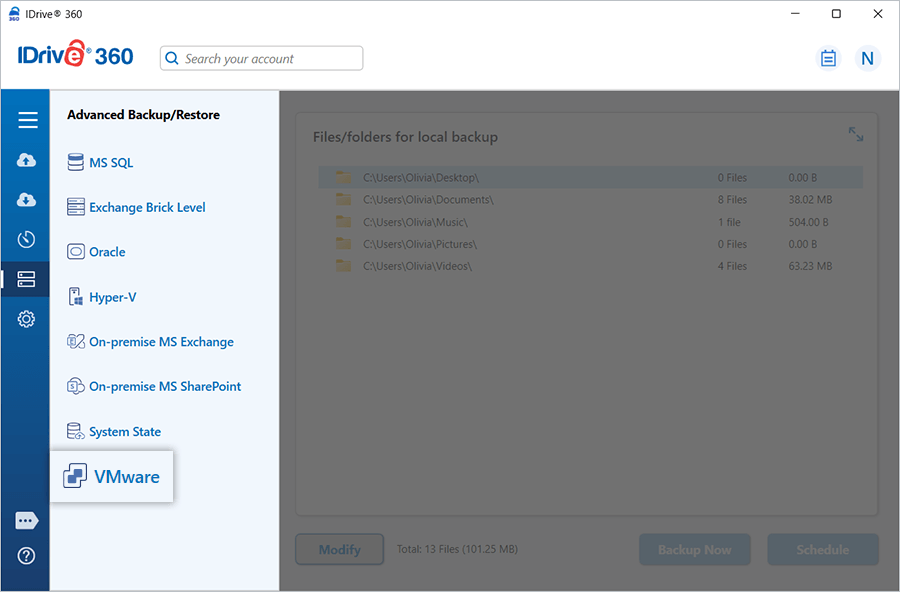
- Sign in to the IDrive® 360 desktop application and click 'Server Backup'.
- Click 'VMware'. The VMware login screen appears.
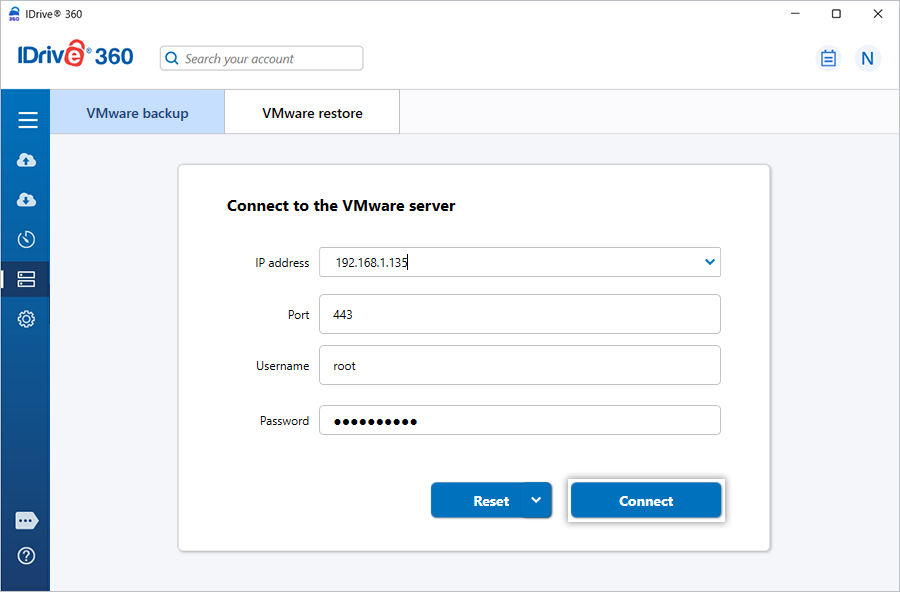
- Enter the VMware server credentials and click 'Connect'.
- Select 'Online Backup' or 'Local Backup
- Online Backup: Stores the backup in your IDrive® 360 cloud account.
- Local Backup: Stores the backup on the selected local drive.
- Select the required virtual machine(s).
- Click 'Schedule'.
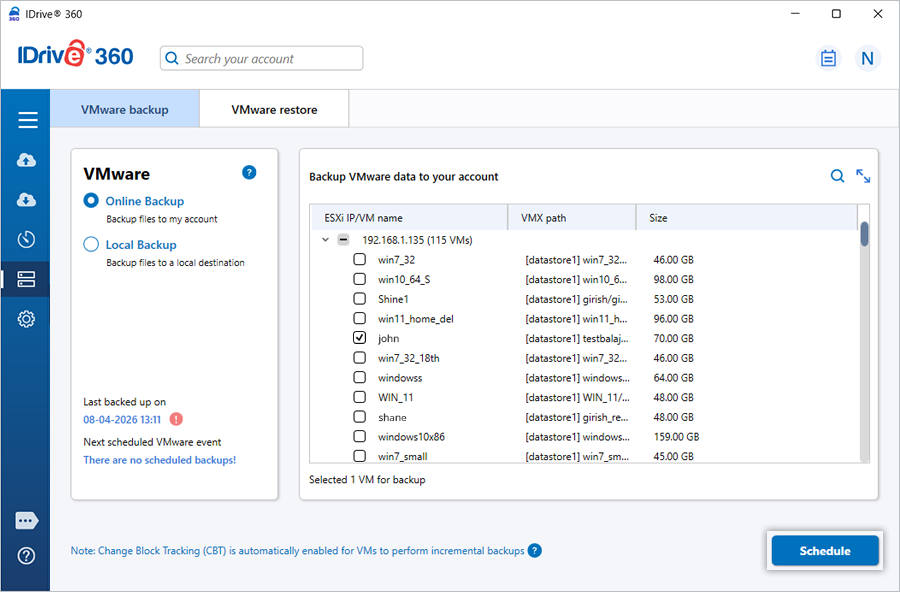
- Configure the backup schedule or start the backup immediately.
Back up virtual machines from vCenter
To back up virtual machines from vCenter,
- Sign in to the IDrive® 360 desktop application and click 'Server Backup'.
- Click 'VMware'.
- Enter the vCenter IP address, port, username, and password.
- Click 'Connect'.
- Select 'Online Backup' or 'Local Backup'.
- Select the required virtual machine(s).
- Click 'Schedule'.
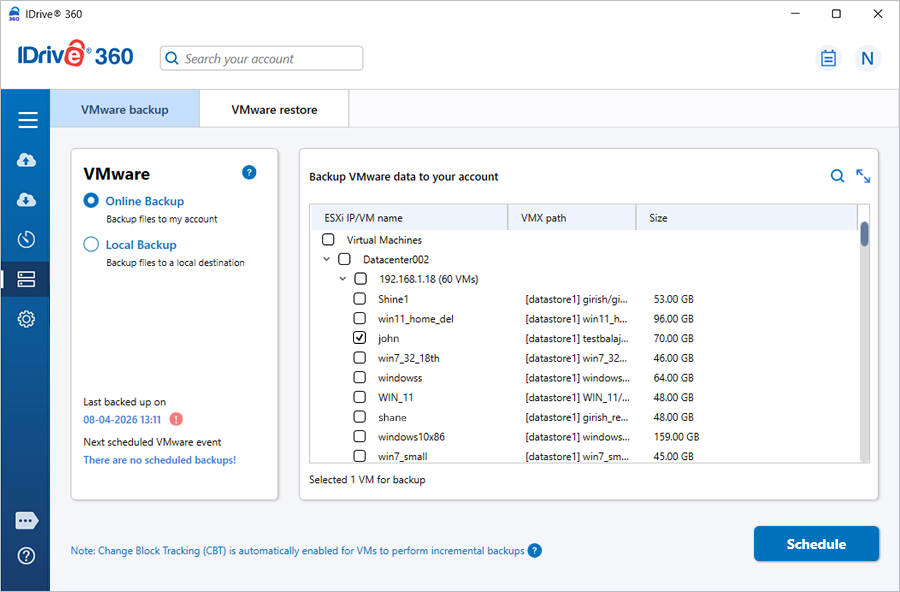
- Configure the backup schedule or start the backup immediately.
Refer to the VMware restore guide to recover your virtual machines when required